
Students can view and submit Assessments from a mobile device.
To take advantage of all Schoology features, it is strongly recommended that users upgrade to the latest version of iOS. Schoology only supports the latest 3 versions of iOS. Whenever Apple releases a new version of iOS, Schoology will drop support for the oldest version it previously supported.
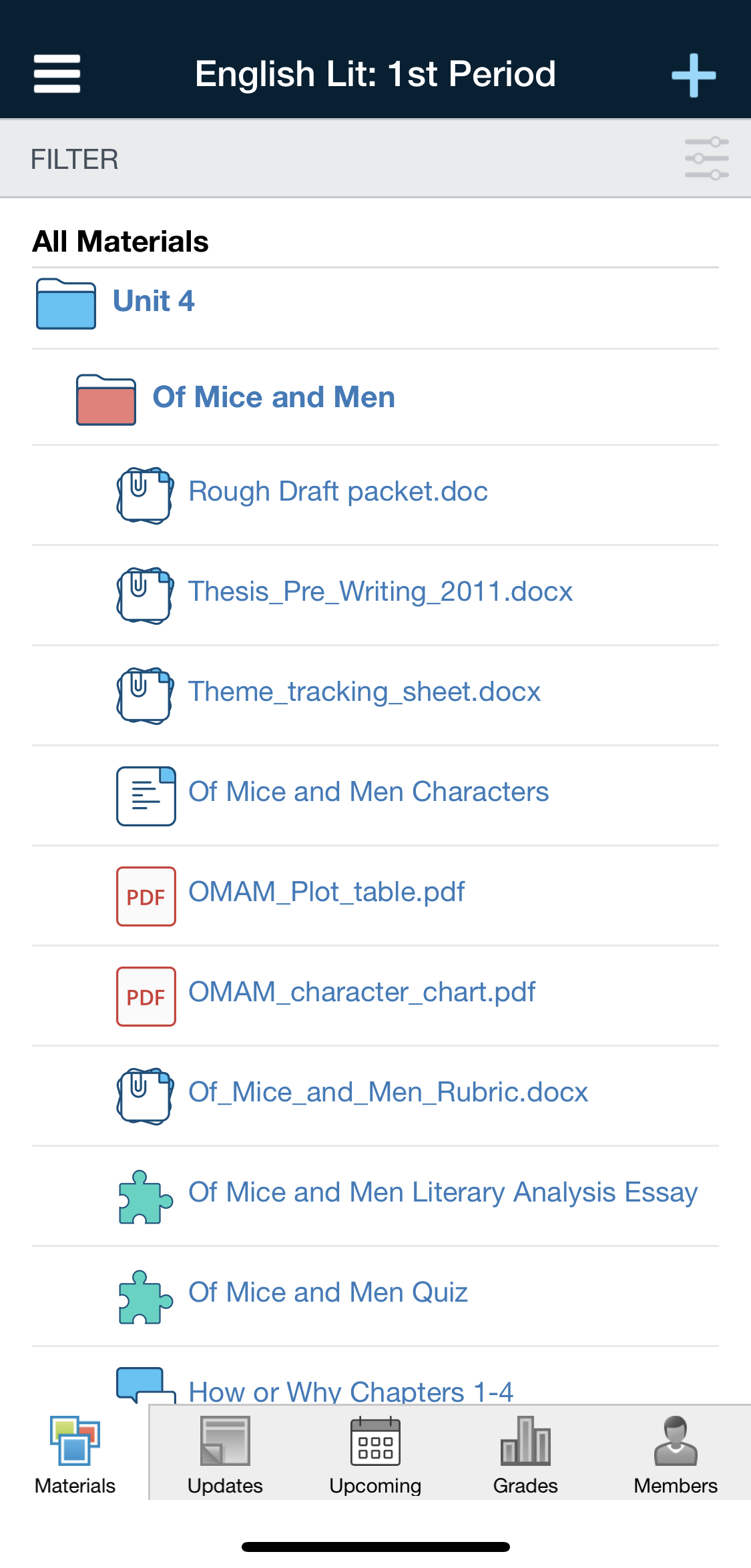
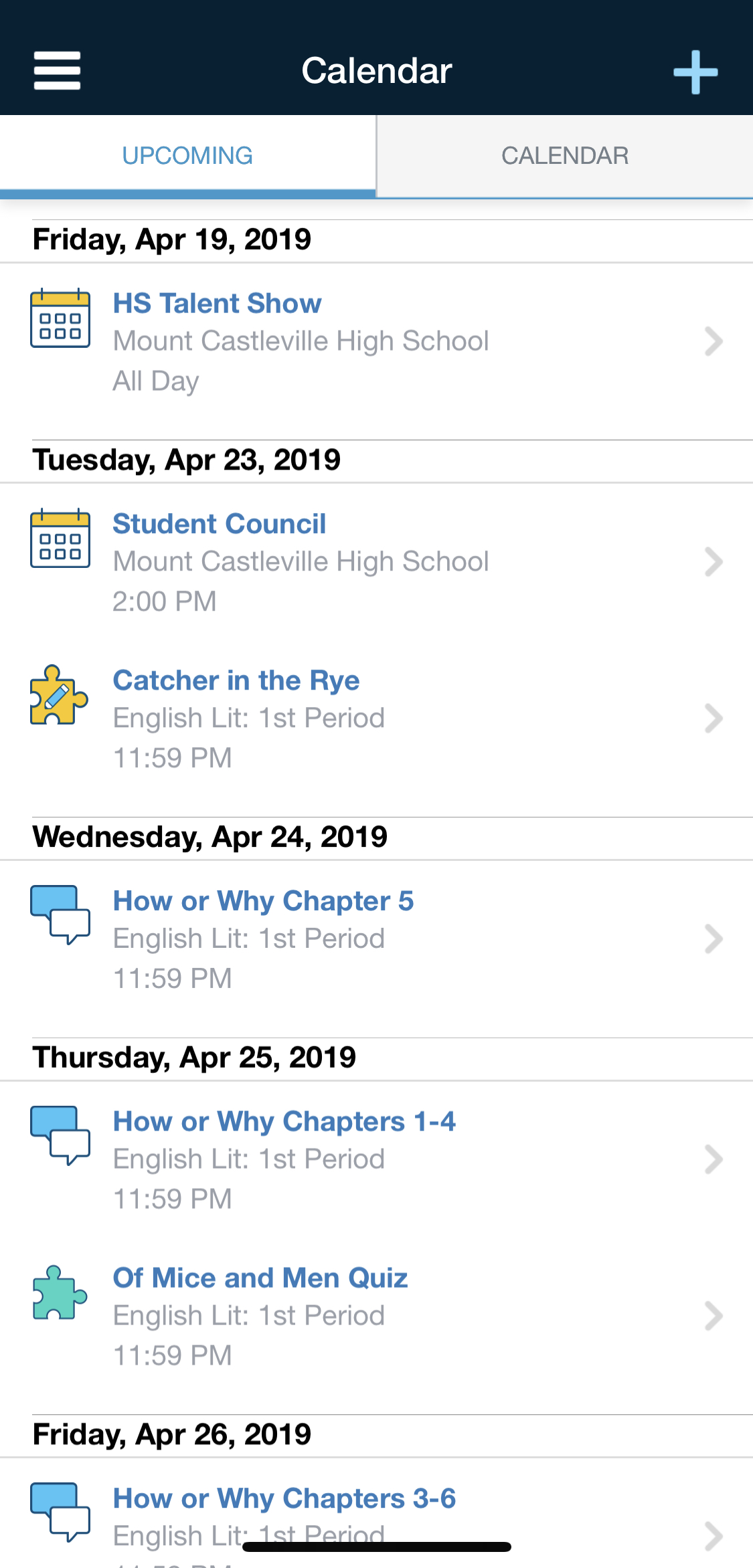
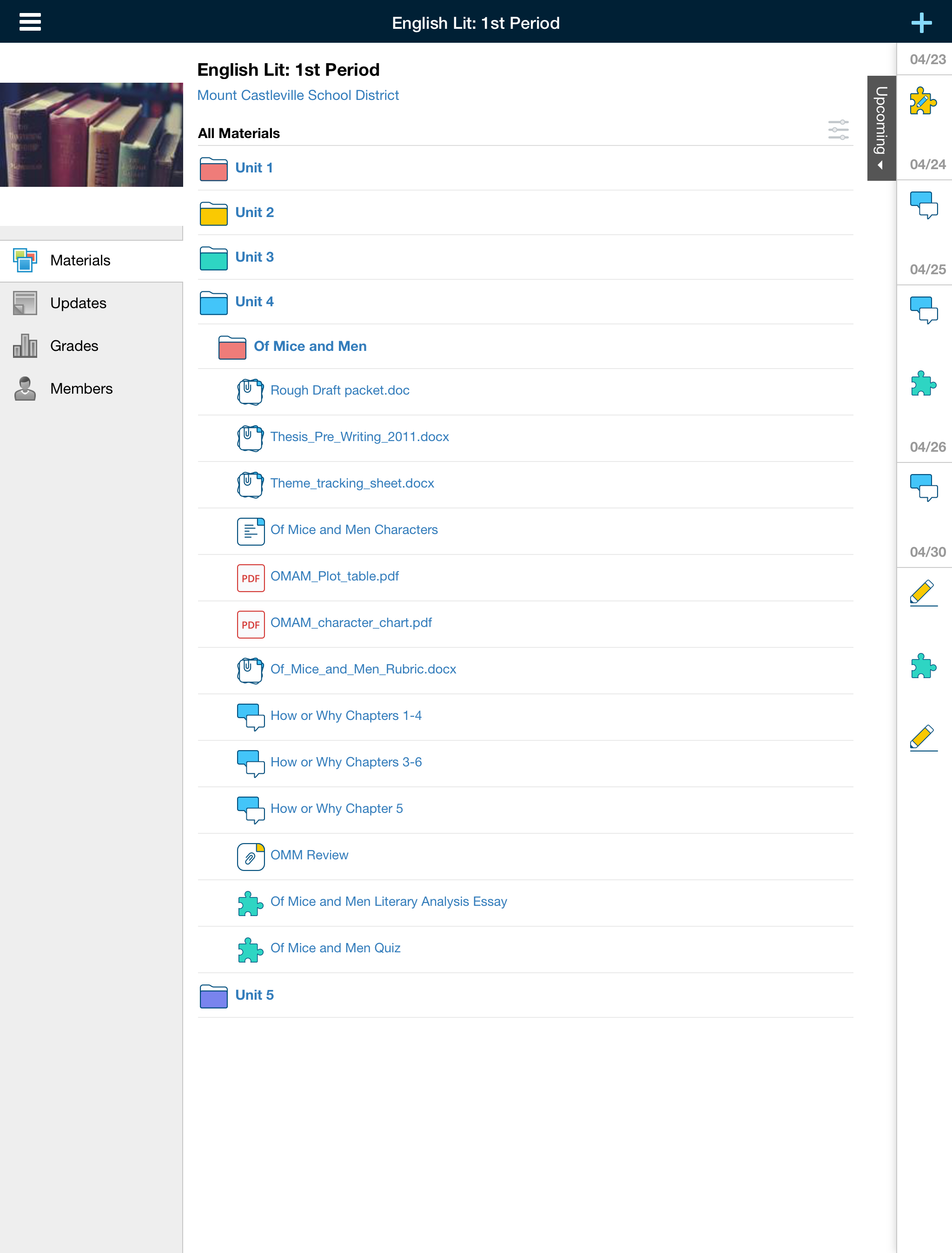
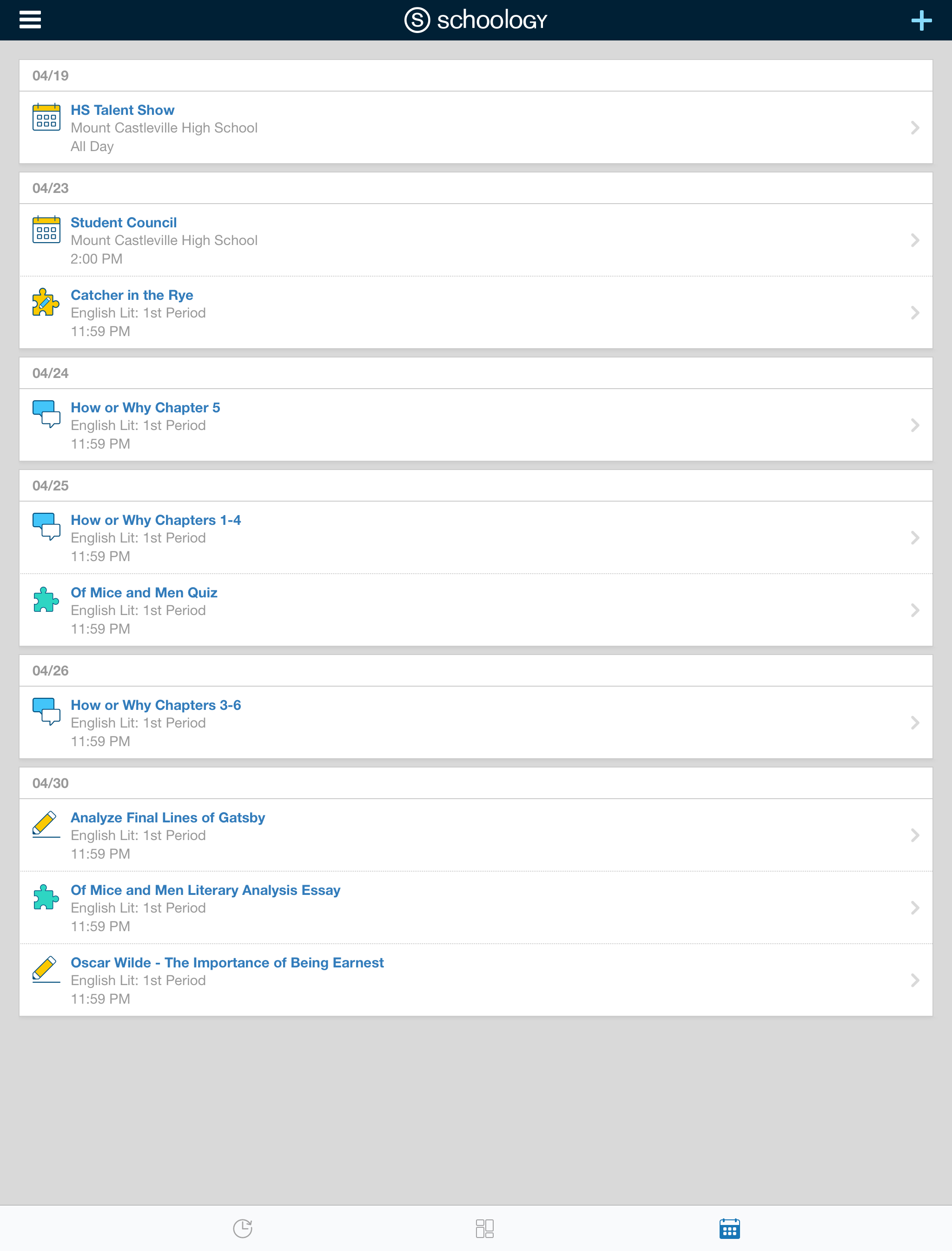
Within the native iOS app, you can open an assessment from anywhere that you normally access material, like the course materials page, calendar, upcoming feed, or notifications.
|
|
Above, the Course Materials view, and the Home screen with the Upcoming Calendar view on an iPhone X. Below, the Course Materials view, and the Home screen with the Upcoming Calendar view on an iPad Pro.
|
|
Begin an Assessment
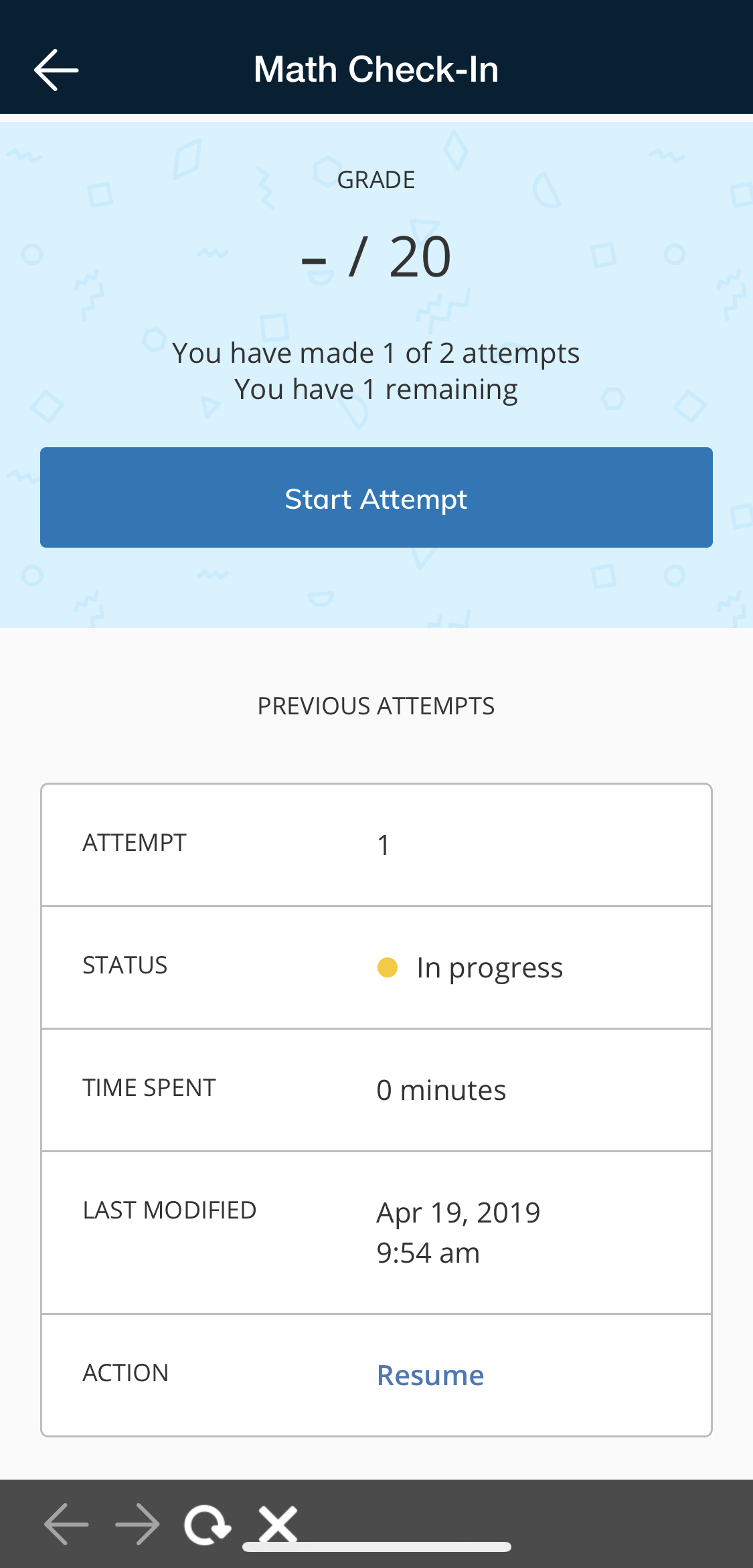
Tap the assessment or managed assessment to open the assessment directly within the iOS app. From here, you can start a new attempt or resume an attempt you have already started.
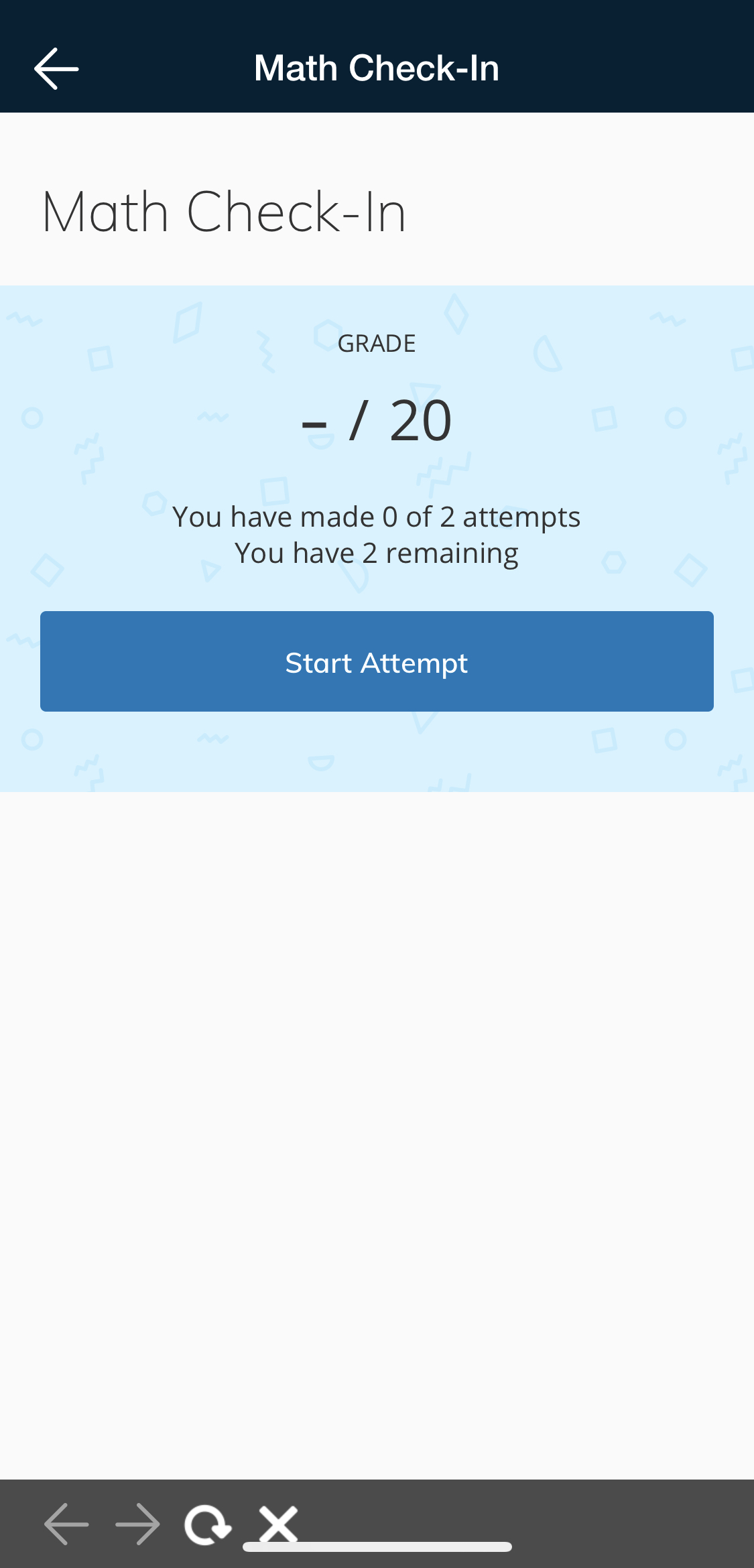
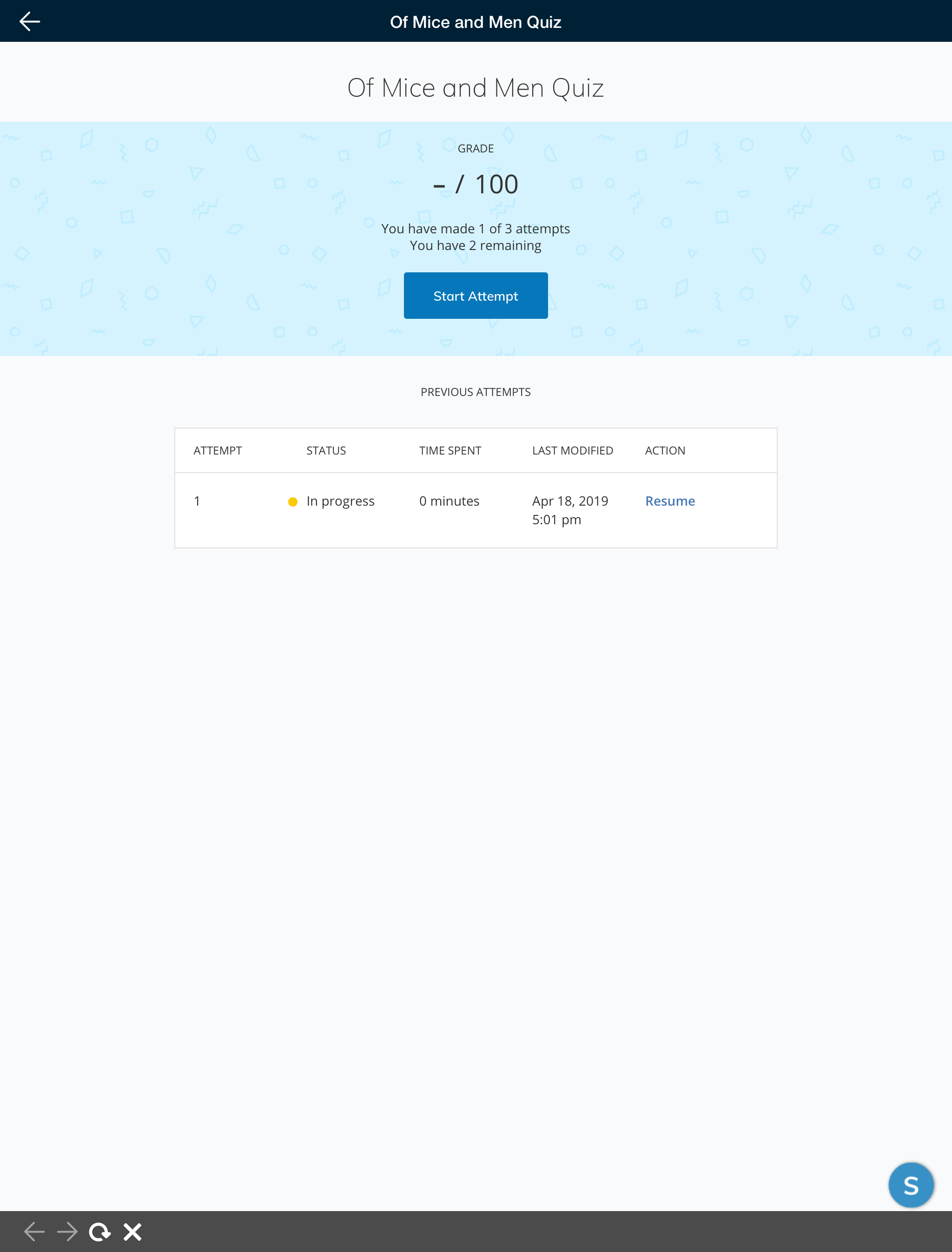
Left: View before an attempt has been started on an iPhone X. Right: View when an attempt can be resumed on an iPad Pro.
Assessment Experience and Tools
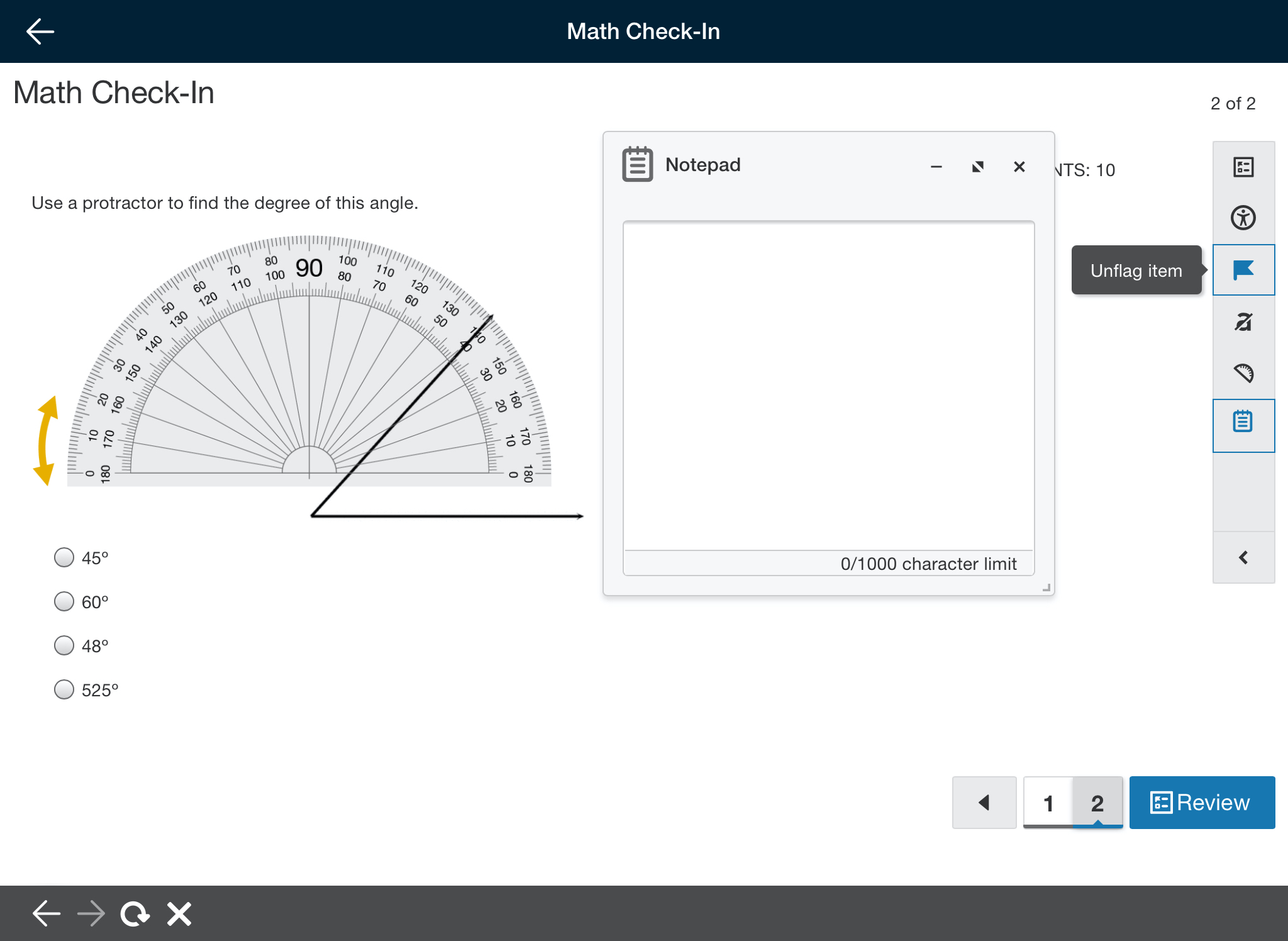
Taking an assessment on larger devices, like an iPad tablet, is very similar to taking an assessment on the web version of Schoology. Use the vertical toolbar on the right side to navigate to specific questions and access your assessment tools.
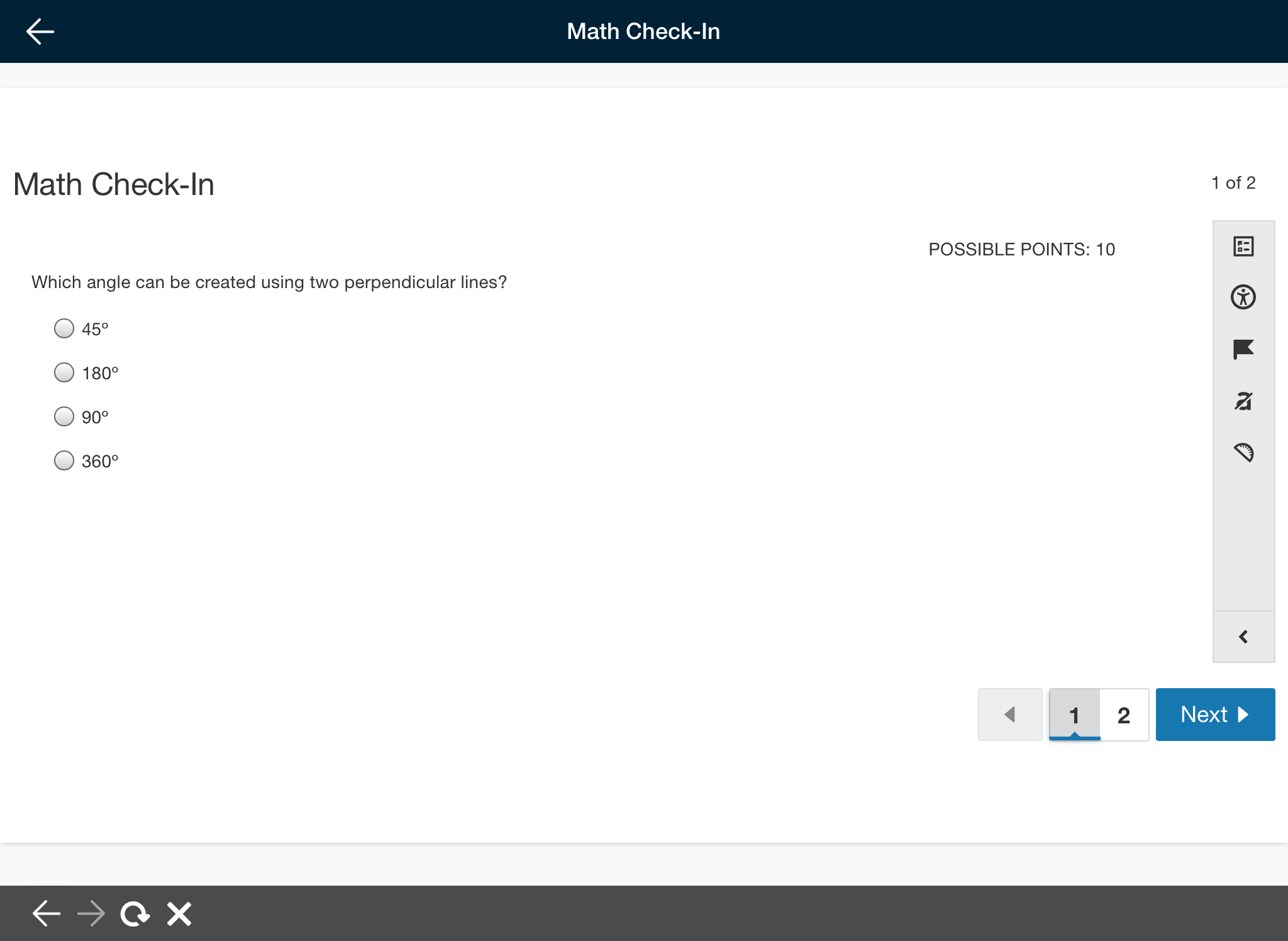
View while taking an assessment on an iPad 6th Gen (landscape view).
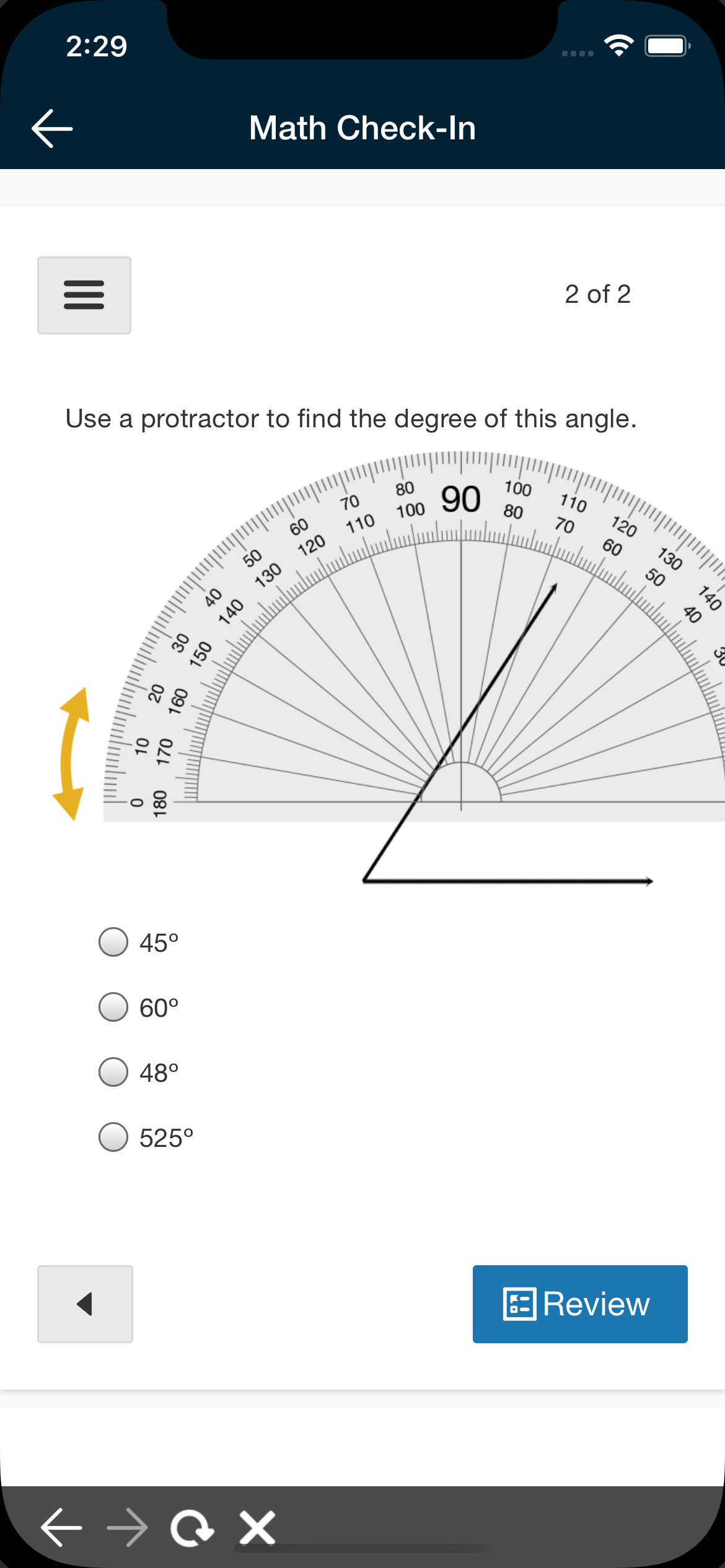
The assessment experience has been optimized for small screen sizes, so you'll notice some small changes when taking an assessment on a smartphone. The toolbar is collapsed into a drop-down menu and the arrows on the bottom are used to navigate between questions.
Any assessment tools that have been enabled for the assessment can be accessed from any mobile device, regardless of size.
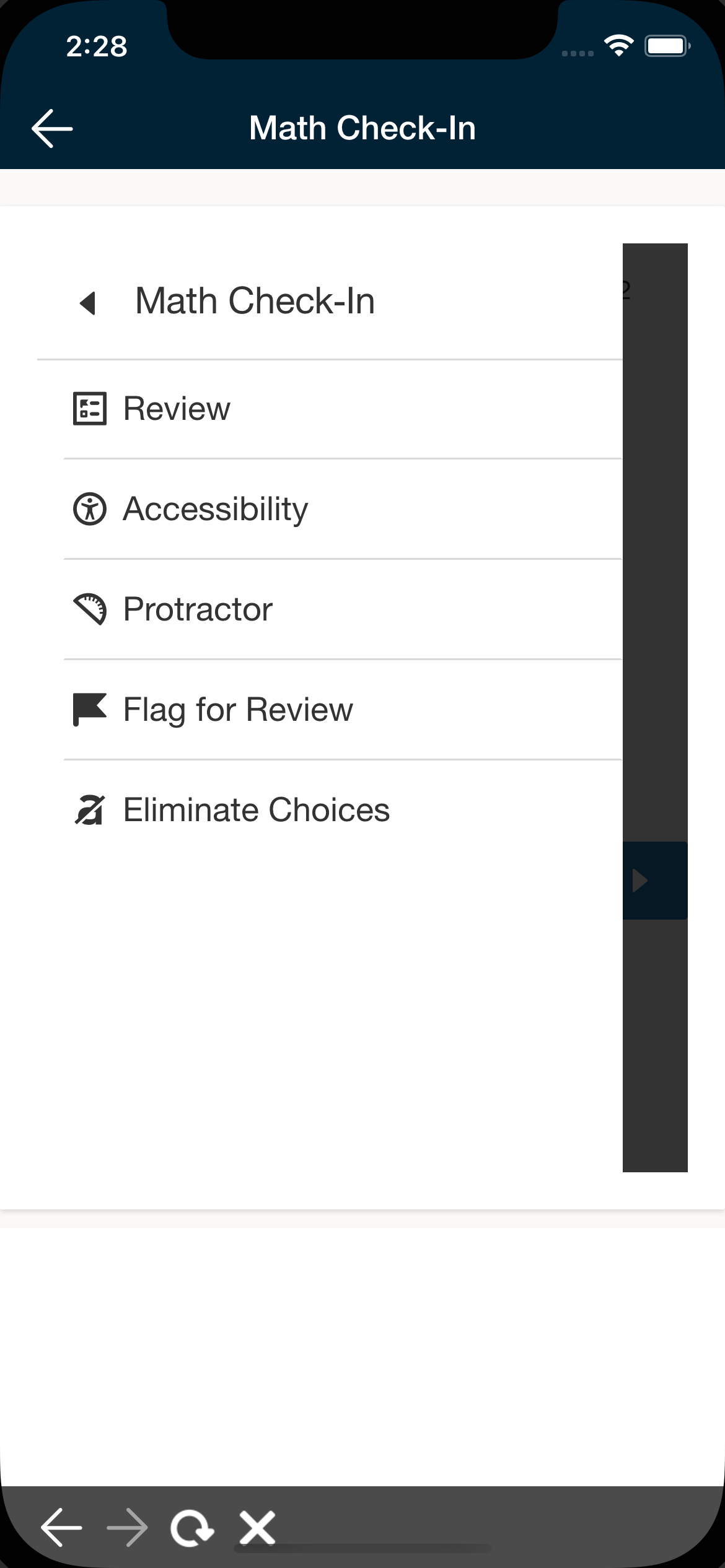
|
|
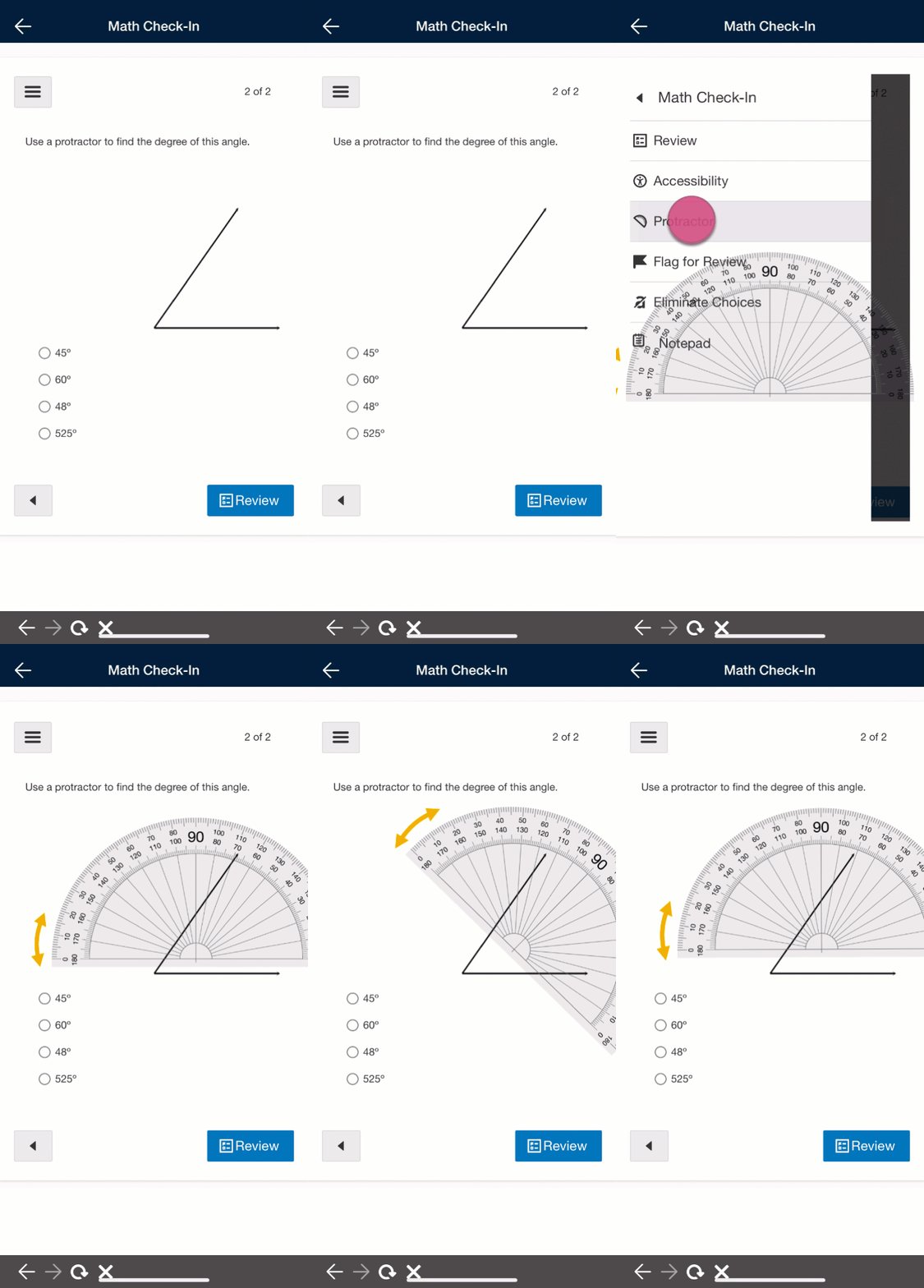
The assessment layout changes slightly on smaller mobile devices. Above, various assessment tools are shown on an iPhone 12. Below, navigating to the assessment tools menu and using the protractor on an iPhone XR.
Below, various assessment tools on an iPad 6th Gen (landscape view).
Submitting an Assessment
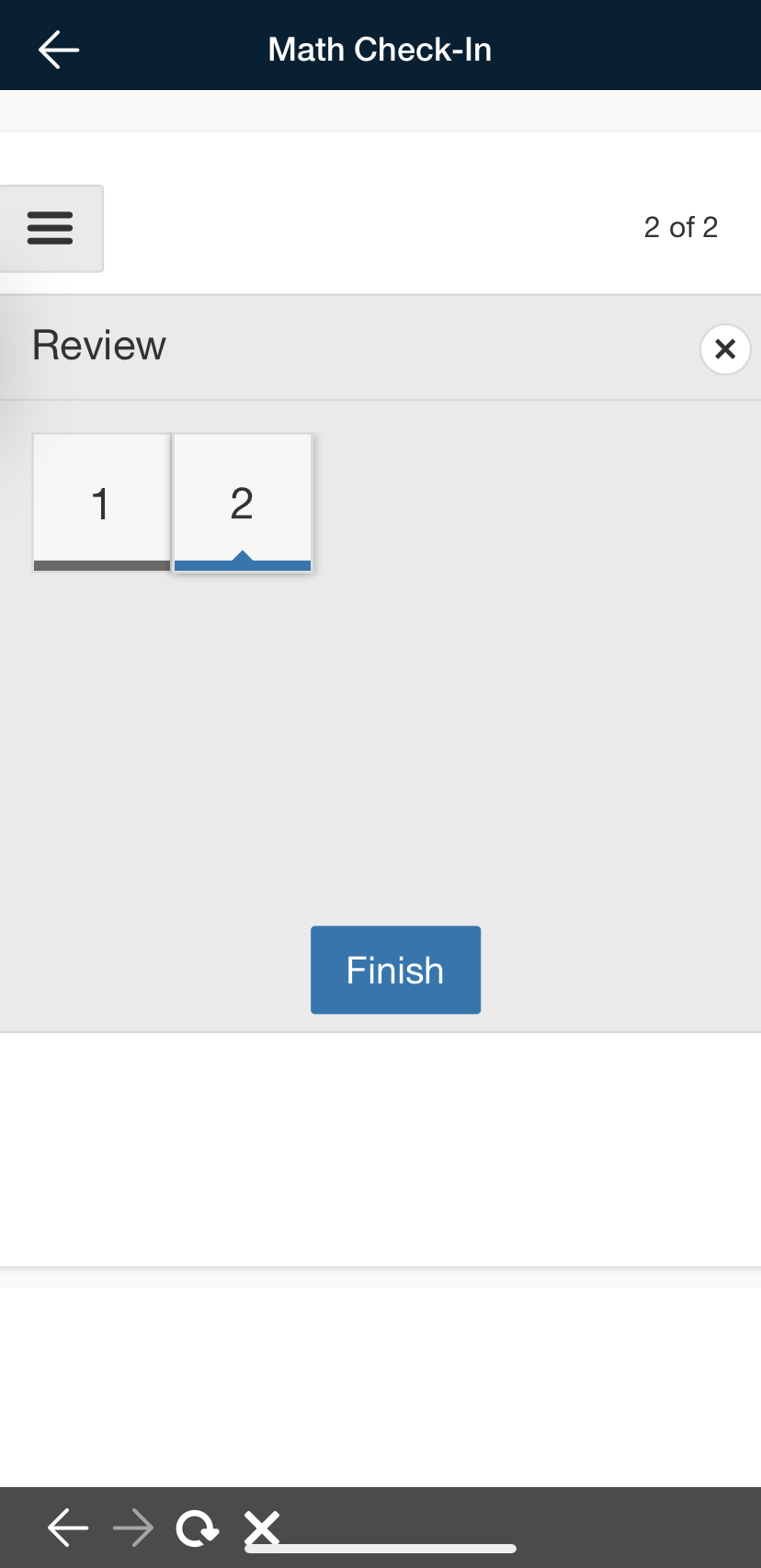
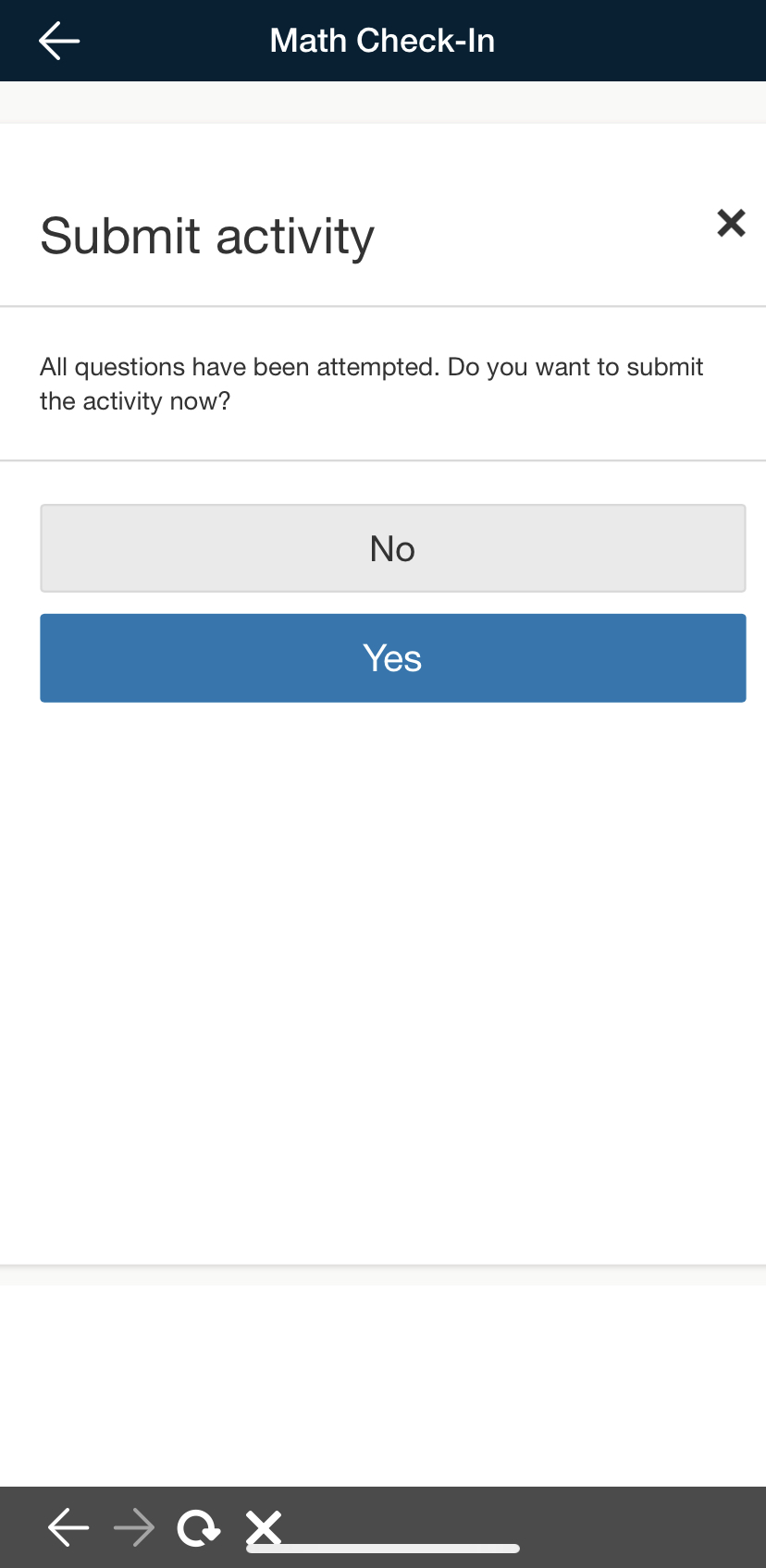
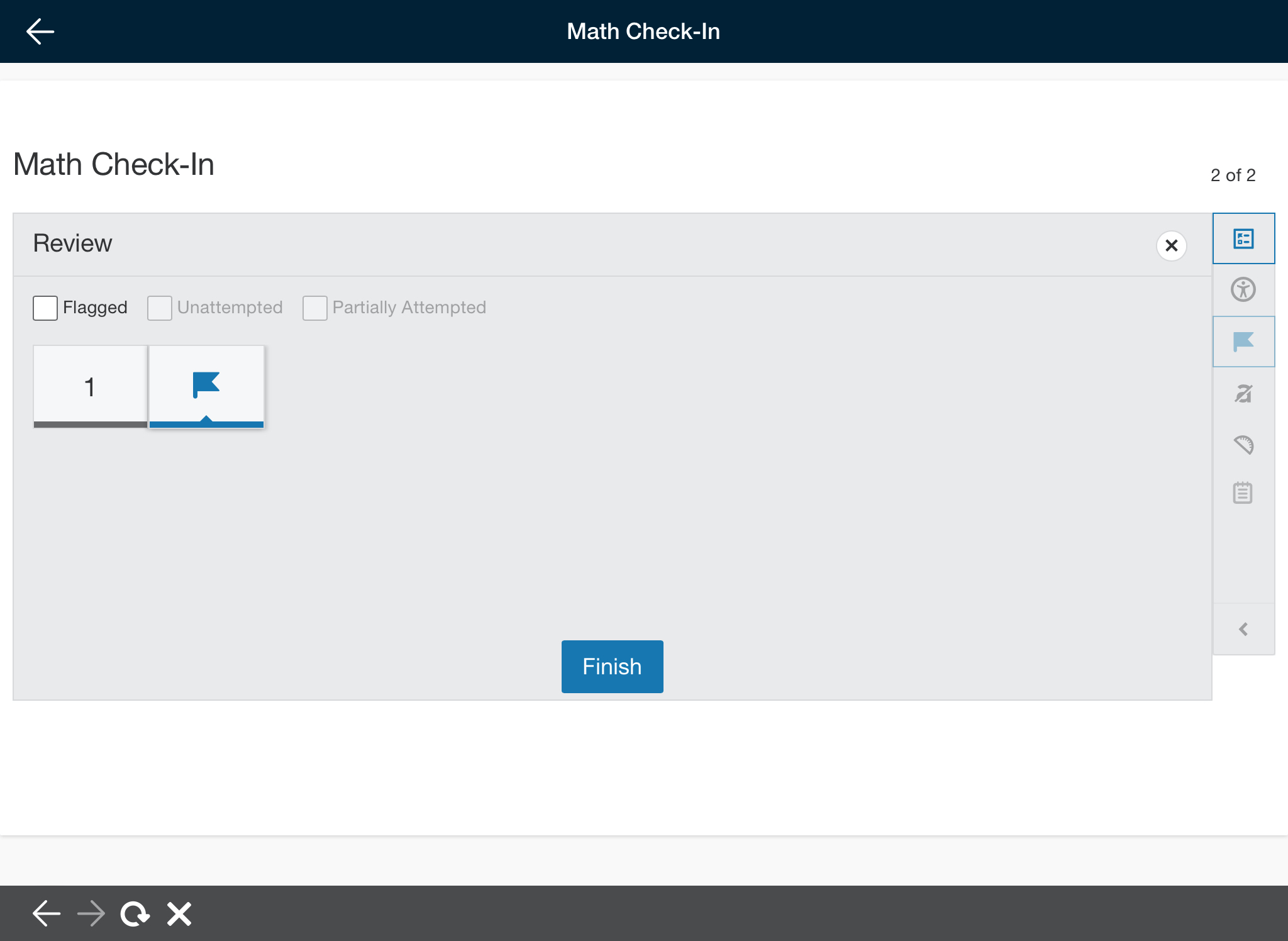
After answering all questions and using any necessary tools, you can submit the assessment by tapping Finish on the review screen and Yes on the next screen. Tap No to continue a review of the attempt.
|
|
Above, submitting an assessment on an iPhone XR. Below, reviewing an assessment on an iPad 6th Gen (with a flagged item).
Reviewing a Submitted Assessment
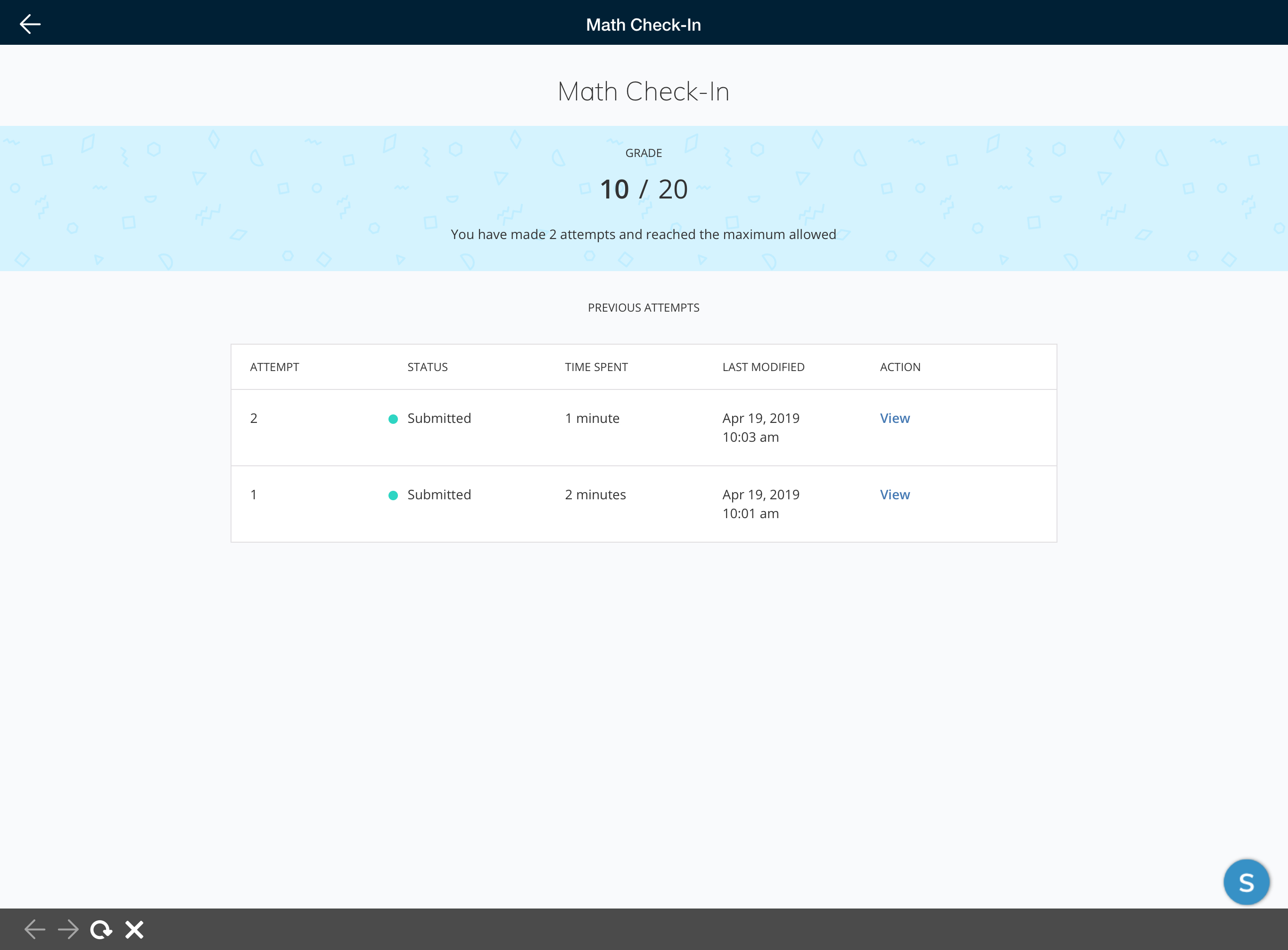
From the assessment page, you can view your grade, submissions that have been graded or resume any attempts that are still in progress.
Depending on the settings in place for the assessment, you may not have permission to view submissions.
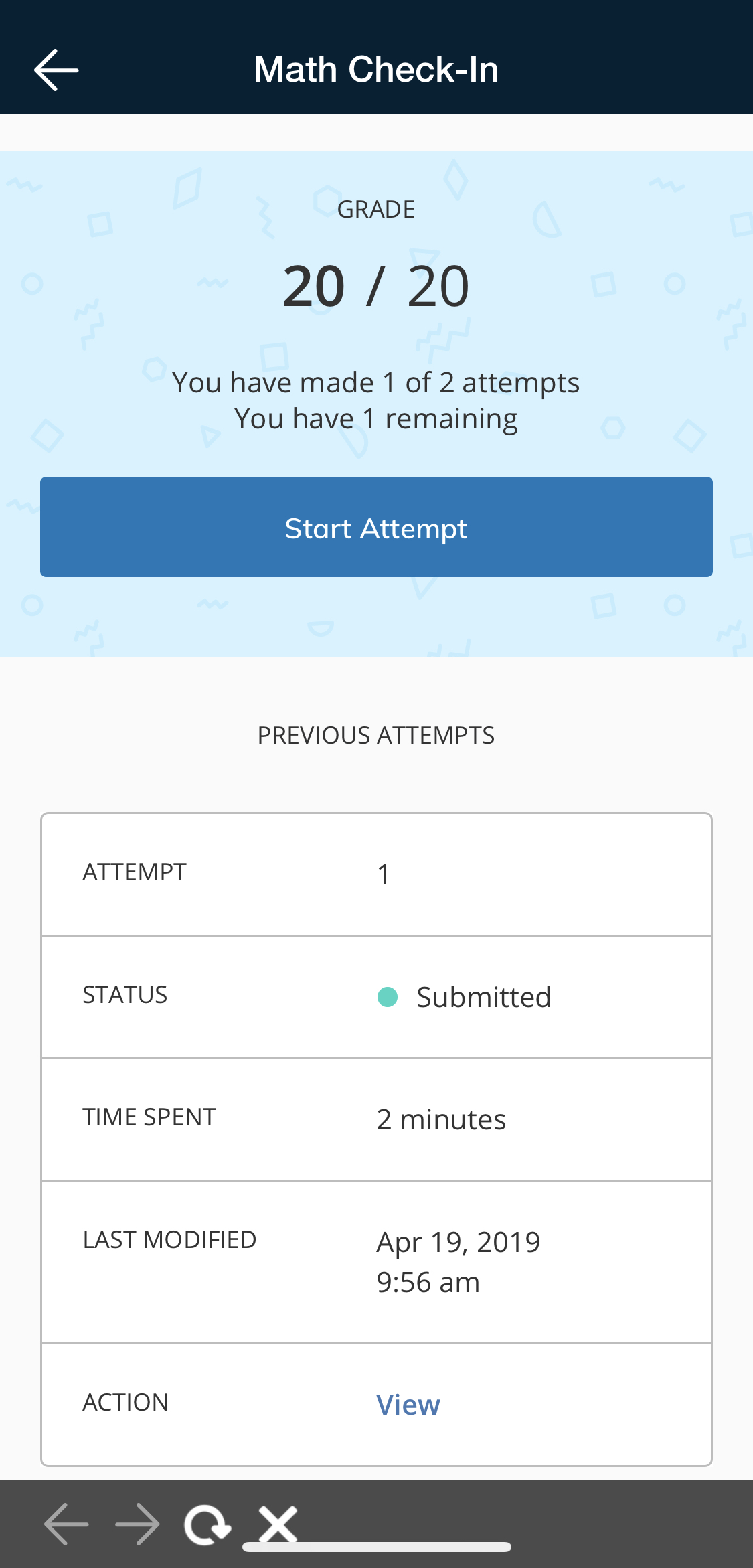
Above, the Assessment attempts page on an iPhone X. Below, the Assessment attempts page on an iPad Pro.
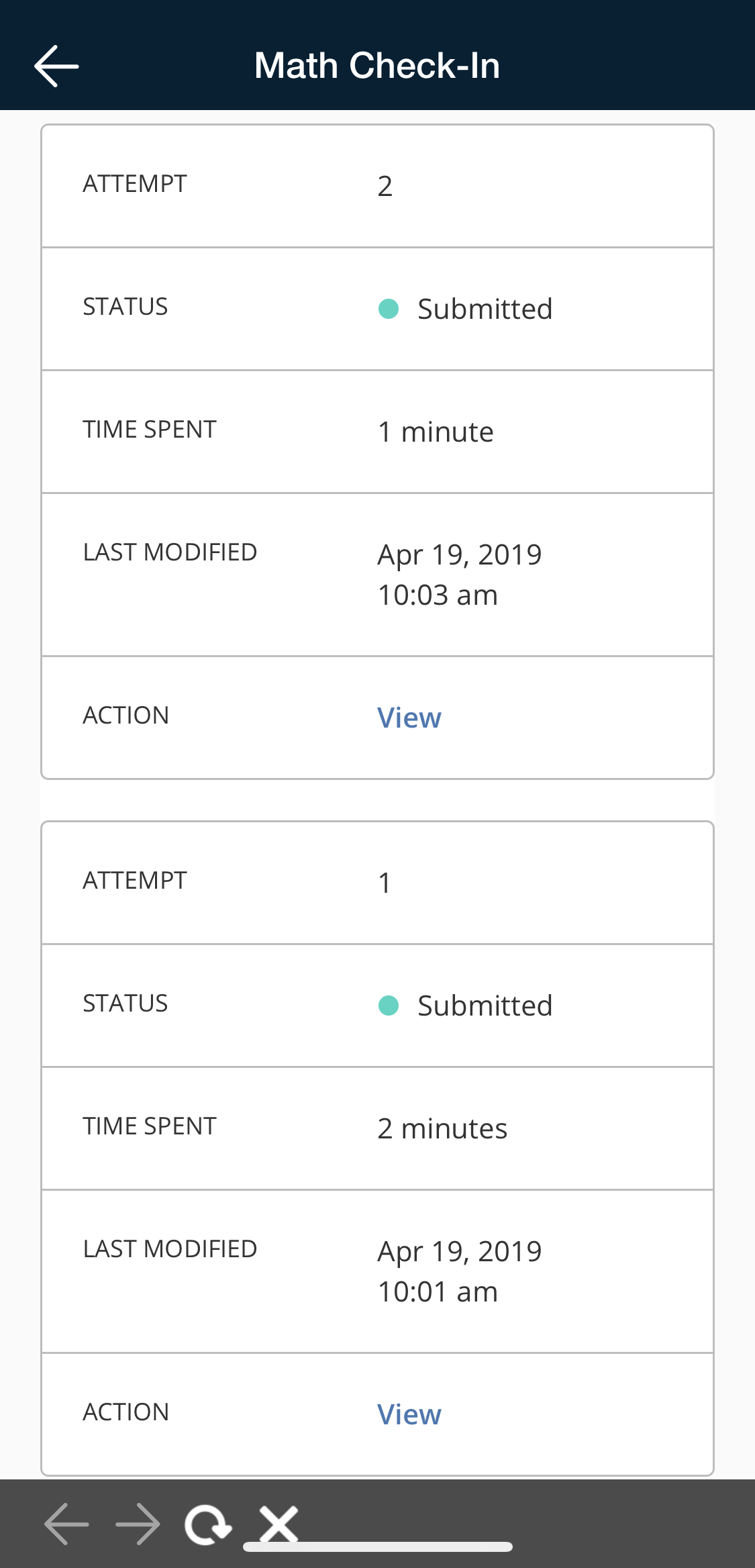
On smaller screens, scroll down to see information about attempts you have begun and submitted.
|
|
Left: The Assessment view after submitting multiple times on an iPhone X. Right: Scroll down to view other attempts.
If you have permission to view submissions, you will see the View option. This opens the submission detail view, where you can scroll through the assessment to view each question.
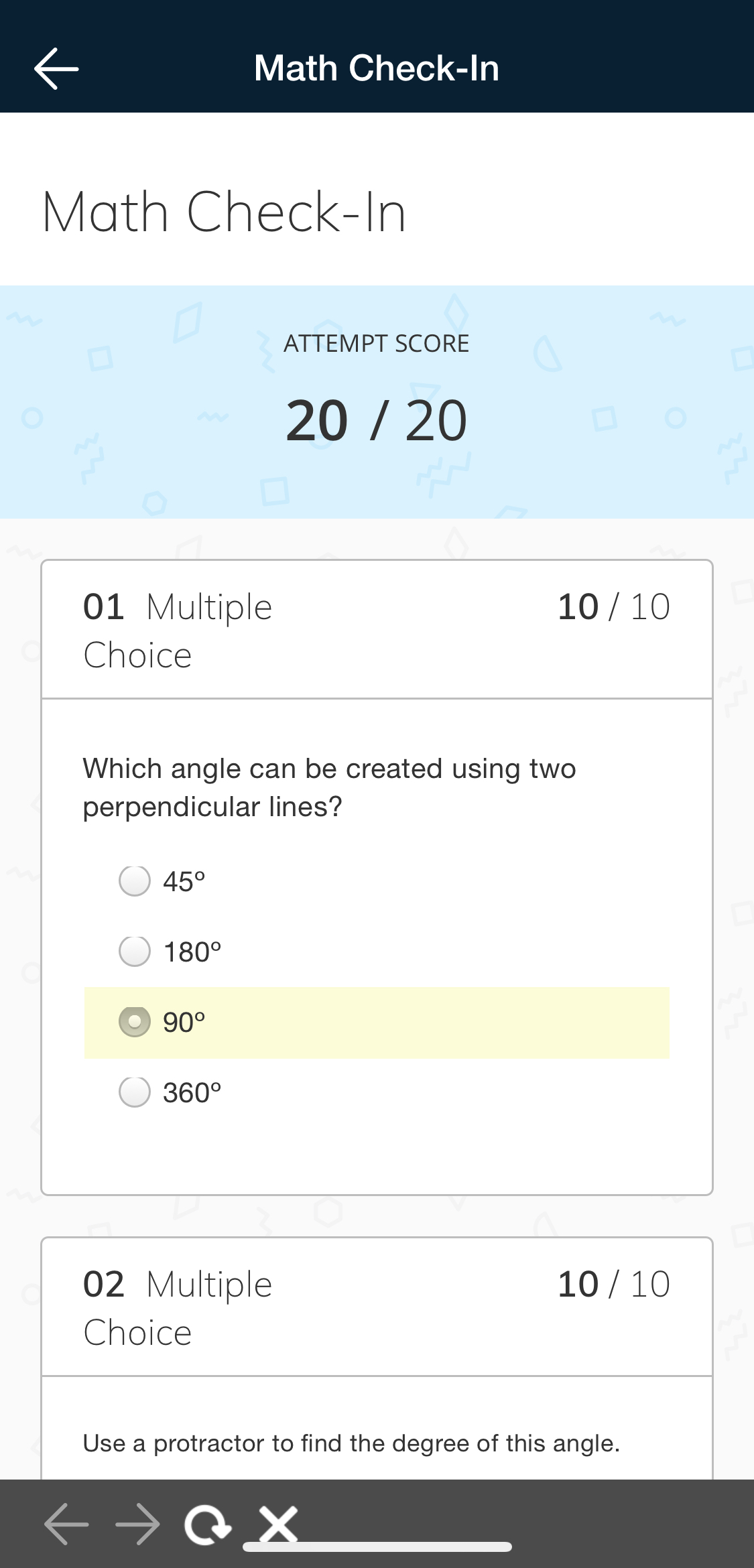
Above, the Submission view on an iPhone X. Below, the Submission view on an iPad Pro (landscape view).
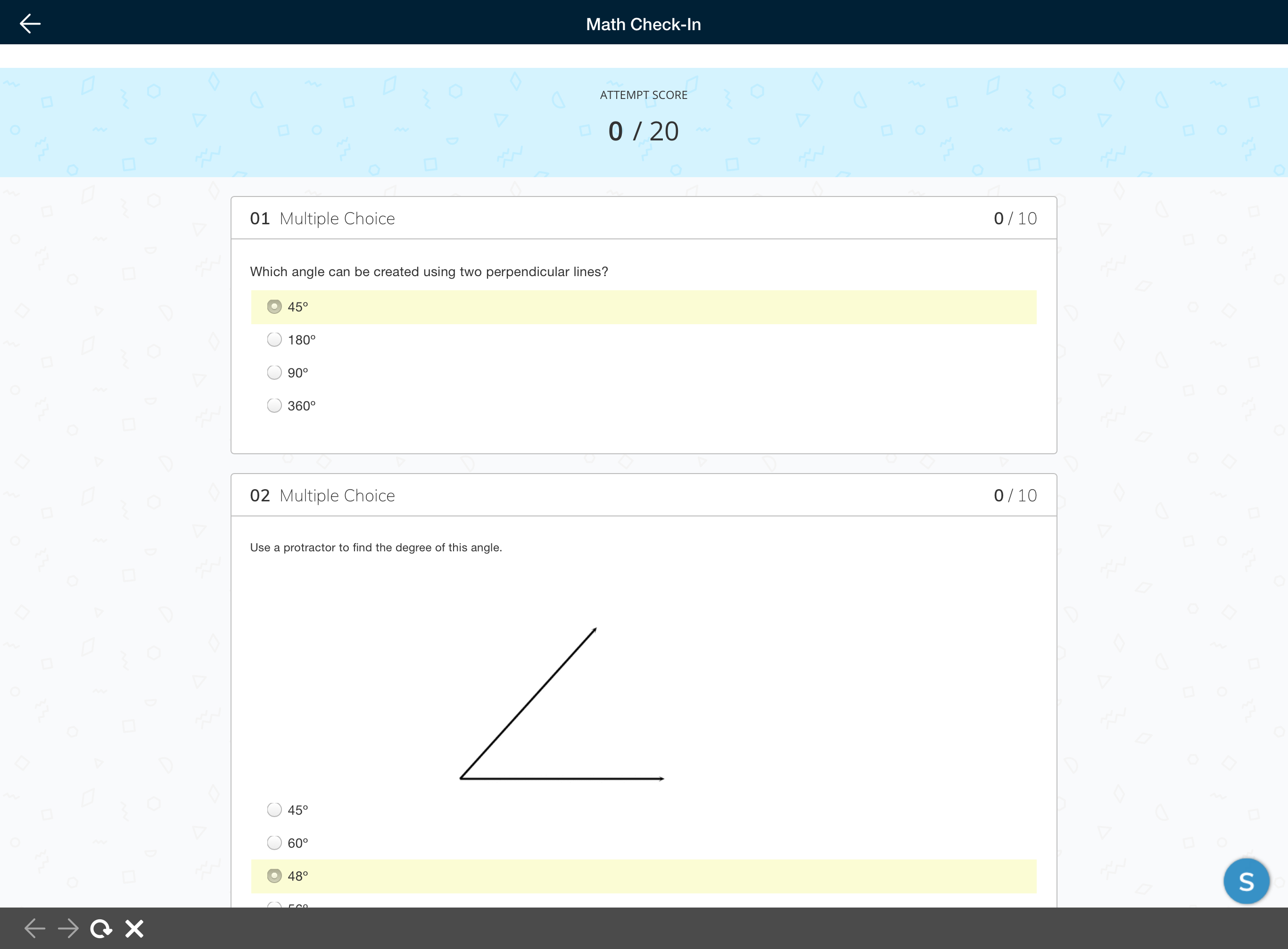
Use the back arrow in the upper left corner to exit the assessment page and return to the course.