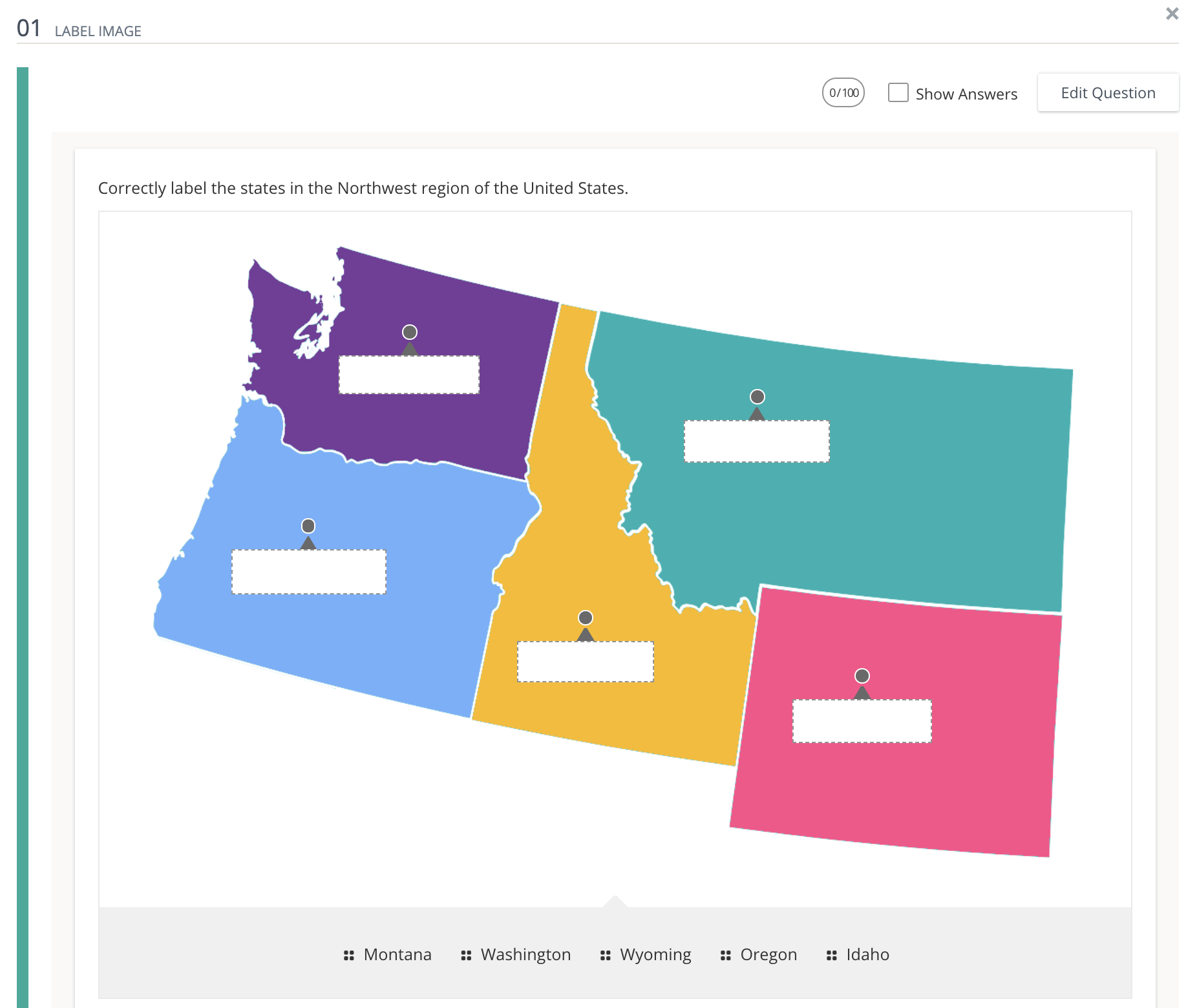
In the Label Image question type, students can select from a list of potential answers and drag them to the correct response box on an uploaded image.
Question setup
-
Enter your question into the Question Setup field.
-
Use the Rich Text Editor to format text or insert images and tables.
-
Hover over icons to display tooltips.
-
-
Click Upload Image.
-
Browse for an image on your computer or shared drive.
-
Select More Options to:
-
Add a direct link to the image.
-
Adjust the Width (px) and Height (px) dimensions of the image.
-
Click OK when complete.
-
-
-
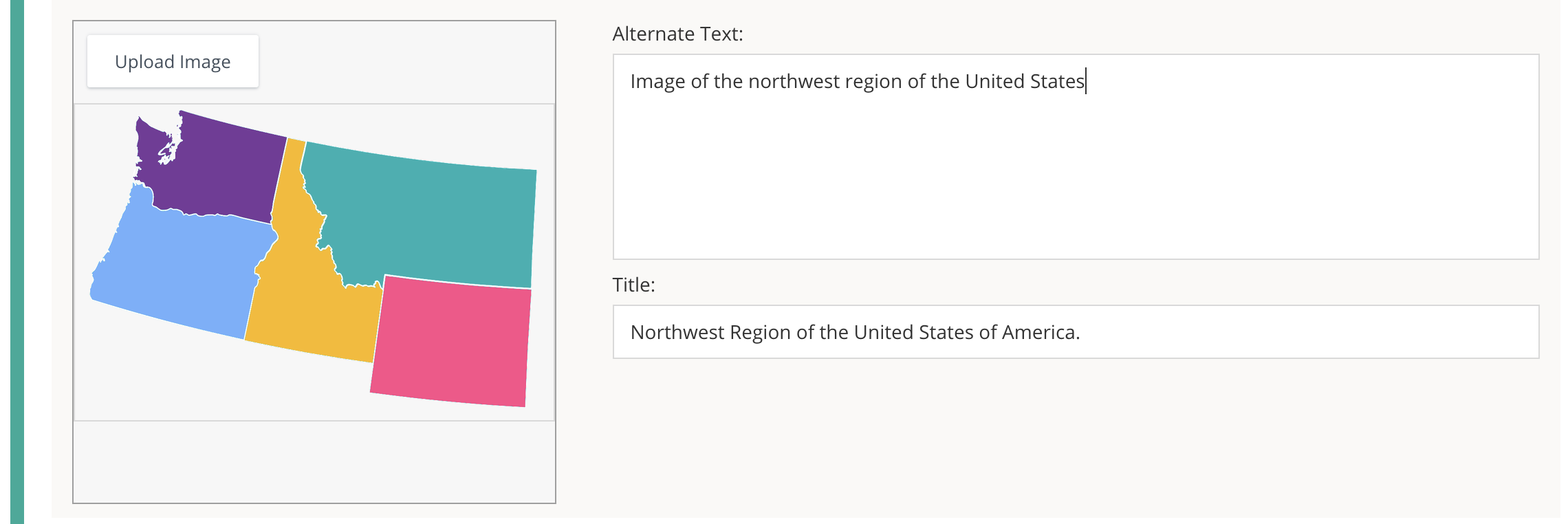
Enter Alternate Text to show if the image can’t be displayed to the student.
-
Enter a Title, which displays when a student hovers their mouse over the image.
-
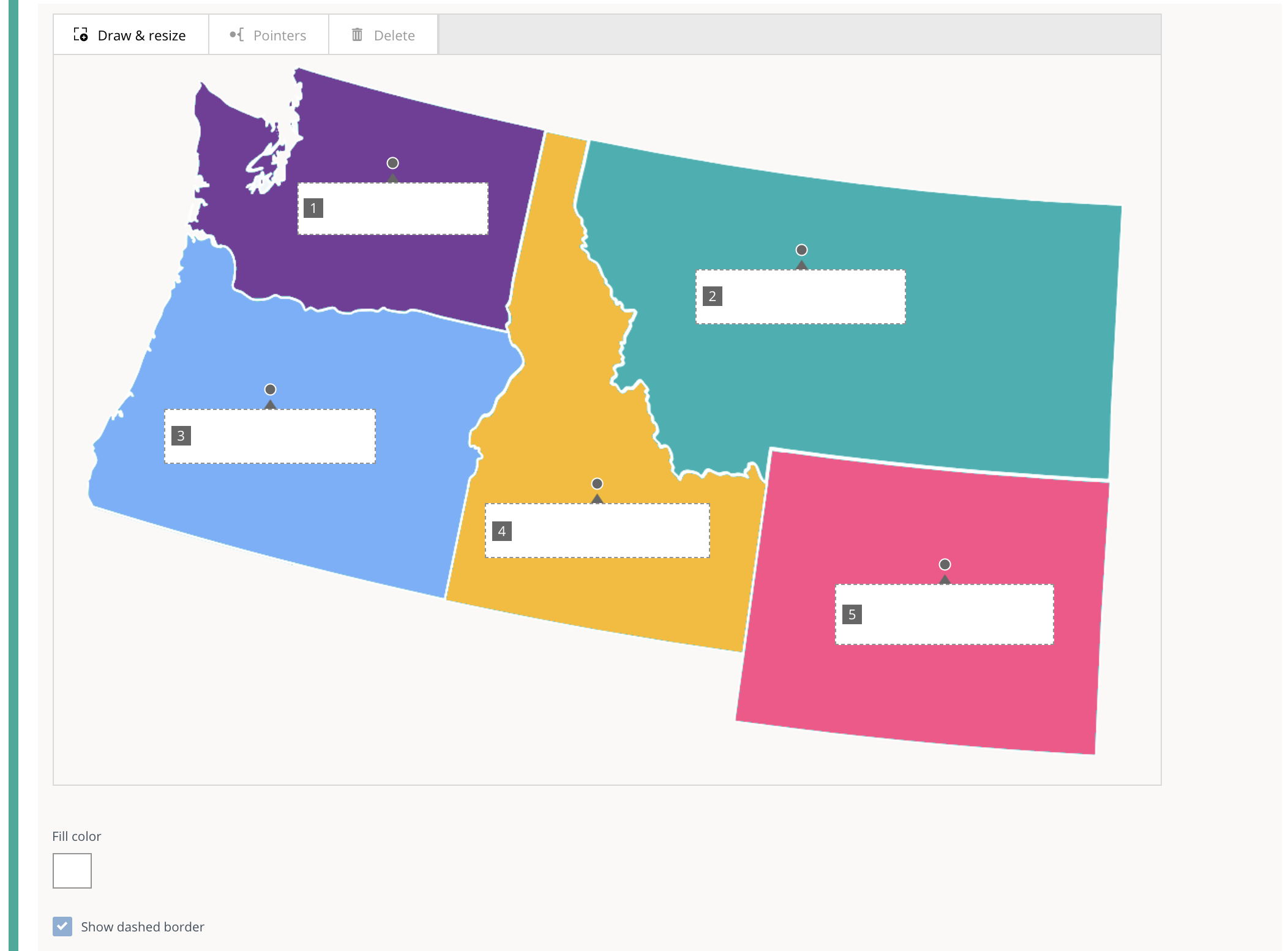
Click Draw & resize to add response boxes to the image.
-
Click and drag to resize or reposition the response box.
-
Each box is numbered to help track responses.
-
To remove a response from the image, select the desired response box and click Delete or use the delete key on your keyboard.
-
-
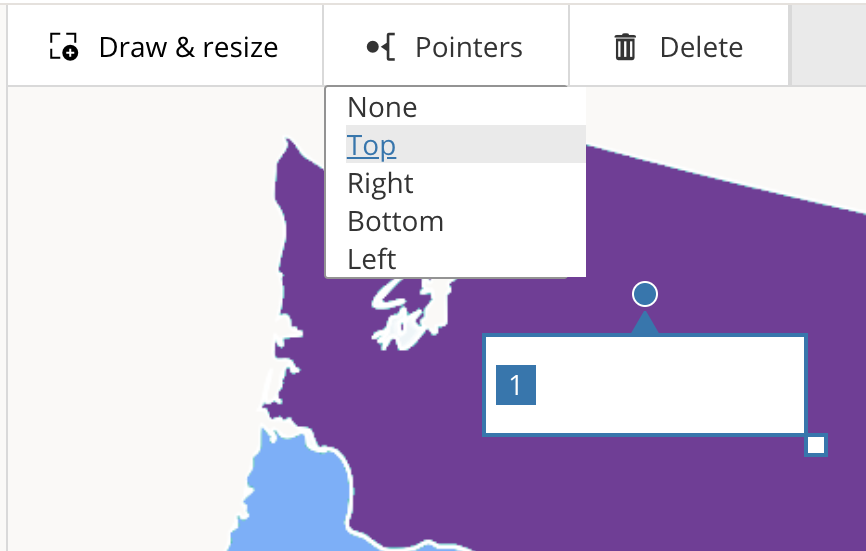
Optionally, add a Pointer to one side of the boxes.
-
Click Fill Color to change the color of the responses.
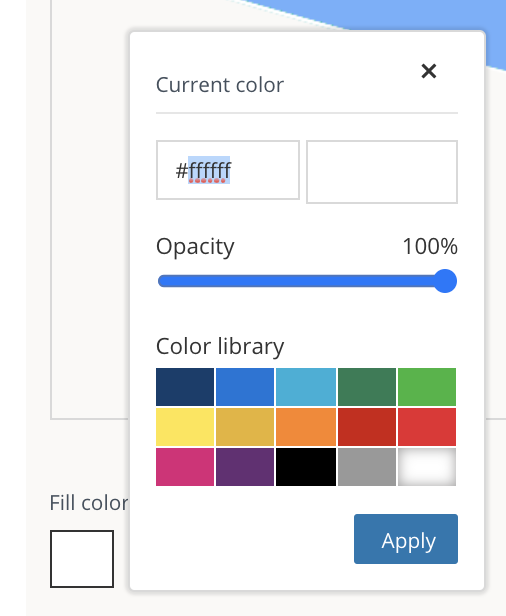
-
Select Show dashed border to add a border to the response box.
-
From Possible Responses, add answers that the student should drag to the correct response box on the image.
-
Click +Option to add more Possible Response fields.
-
Click the trashcan icon to the right of a possible response to remove it.
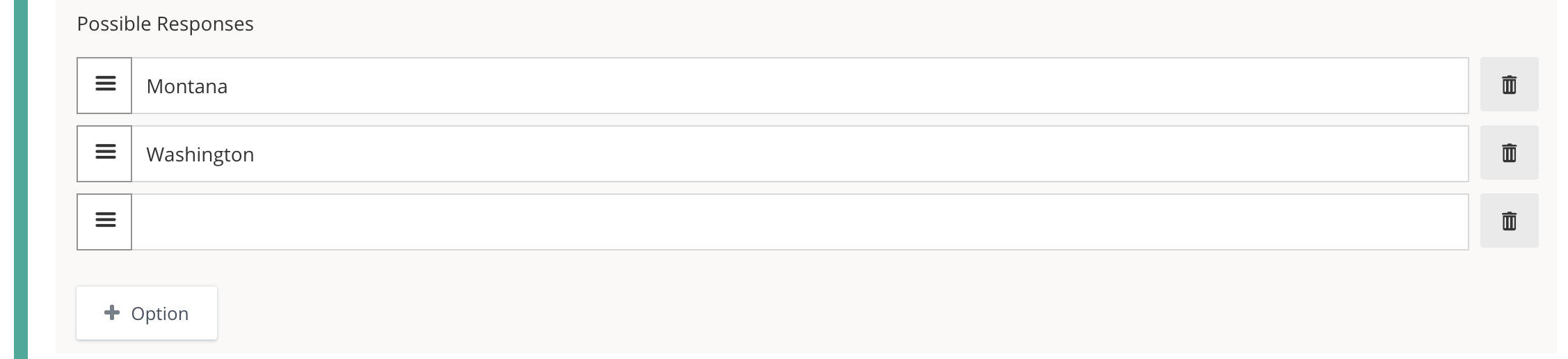
-
Correct answer setup
Drag and drop the correct Possible Response to the appropriate response boxes on the uploaded image.
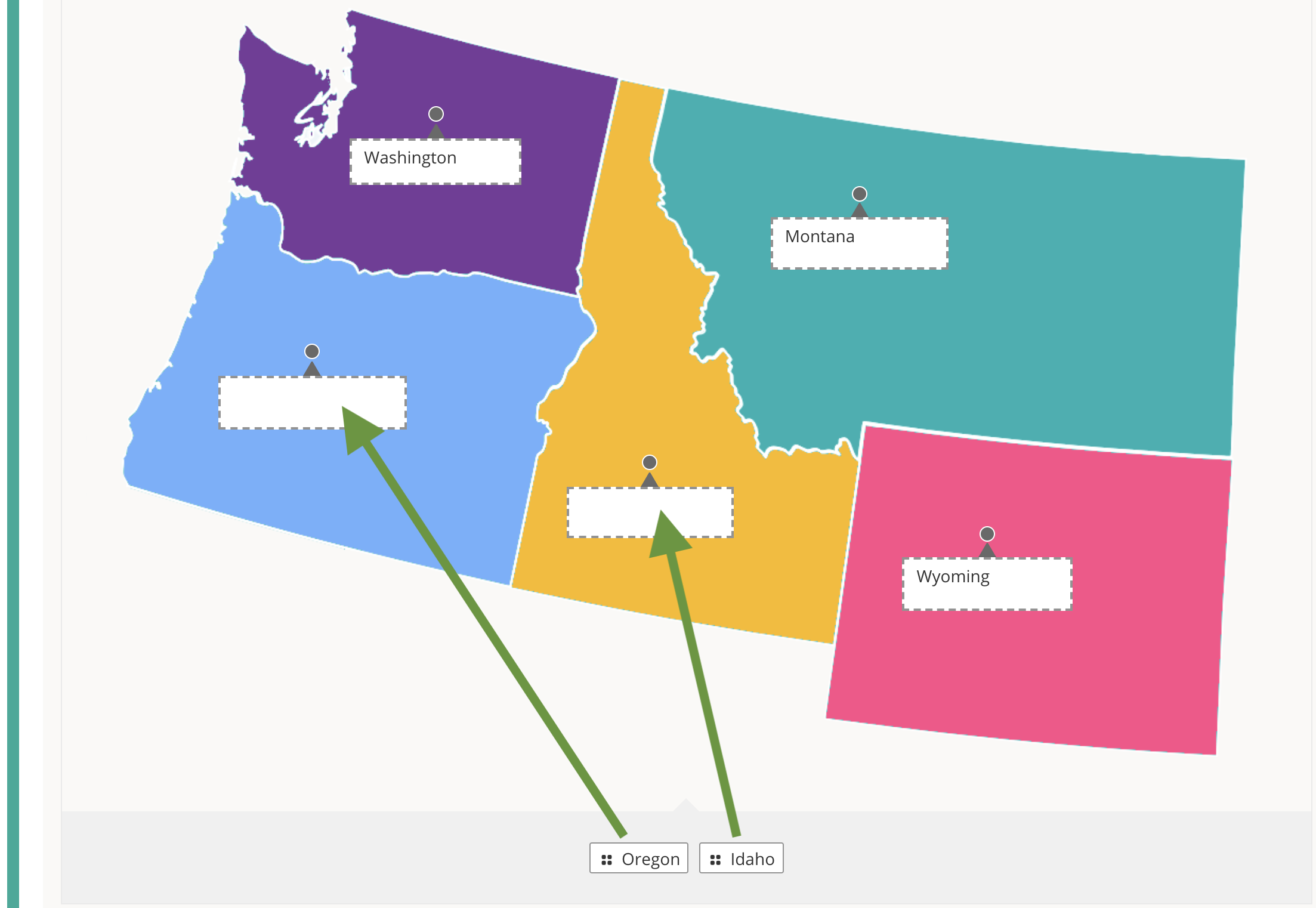
Optionally, select Duplicate Responses if you want to reuse the responses. When selected, a response stays in the list even after a student drags it into a response box on the image.
Additional setup options
Scoring type
Choose your Scoring Type for the question after you have placed the correct responses into each response box.
-
Select Exact Match to require that students correctly respond to all choices. This option allocates 100% of the possible points for correctly responding to each response box and zero points if one or more responses are incorrect.
-
Select Partial Match to score each correct response individually. The total question score is divided across responses.
Partial match
If the Scoring Type is set to Partial Match, the formula for scoring the question is:
(value of the percentage ÷ the number of response boxes) × the number of selected correct responses = partial match value
-
The partial match value does not represent the number of points the response will receive, but the percentage of the total possible points.
-
The calculation always uses 100% from the main correct answer—not the alternate answers.
Partial match example
If there are four possible correct responses, and a student has three correct responses and one incorrect response, the value produced by the formula would be 75%.
(100 ÷ 4) × 3 = 75
If the question is worth 10 points, the student would receive 7.5 points, because 75% of 10 is 7.5. To penalize the student for the incorrect responses, refer to the Penalty score information.
From Instructor stimulus, enter extra instructions or information related to the question. This is intended for review only by the instructor or author. The content is displayed to instructors from Preview Question.
Penalty score
When using Partial Match, you can subtract points for incorrect selections.
-
Enter 0 for the Penalty Score to ignore wrong answers.
-
Enter 100 to weigh incorrect answers the same as correct ones.
The formula for scoring a question with a penalty score is:
partial match value - [(penalty ÷ the number of response boxes) × the number of selected incorrect responses]
-
The penalty formula, like the partial match formula, produces a relative percentage, not a point value.
-
The penalty is applied by dividing the penalty score by the total number of response boxes to determine the percentage deducted per incorrect response.
Penalty score example
If you were to take the previous example and add a Penalty Score of 20, the value produced by the penalty would be 70%.
75 - [(20 ÷ 4) × 1] = 70
Again, if the question is worth 10 points, the student would receive 70% of 10, which is 7.
Add learning objectives
-
Click + Learning Objectives to display the Learning Objectives browser.
-
From the available learning objectives, select a category and choose from the objectives.
-
Click Align to add the objectives.
Preview and edit the question
-
Click Preview Question to review how the question will display to students.
-
Click Edit Question to return to the question editor. Alternatively, click X to close the question.