
Use the Ordering questions question type to assess students' ability to arrange items in sequence.
Question setup
-
From Question Setup, enter your questions or instructions.
-
Use the Rich Text Editor to format text or insert images and tables.
-
Hover over icons to display tooltips.
-
-
In the Options fields, enter the terms that students must arrange. These terms will auto-populate in the Correct Answer Setup.
-
Click +Option to add additional choices.
-
Click x for an option field to remove the choice from the question.
-
Do not enter options in the correct order. If the student does not need to move any items to correctly sort them in sequential order, the system will not recognize that the student has answered the question.
Correct answer setup
Terms entered in the Options field are automatically displayed in Correct Answer Setup. Drag and drop them into the correct order.
Optionally, add alternate correct answers:
-
Click the + button at the beginning of the Correct Answer Setup area to set up an additional set of acceptable responses to the blanks in the question.
-
In the percentage field, set partial credit and the percentage of possible points students can earn for this answer.
-
Set the Correct Answer Threshold to determine how close to the correct answer a student’s response must be to be marked correct. For example, if the correct answer is 4 and you’ve set the threshold at 0, only a response of 4 is marked correct. However, if you set the Threshold at 1, responses of 3 or 5 are marked correct.
Scoring type
Choose a Scoring Type for the question after setting the correct answer.
-
Select Exact Match to require students to place all items in the correct sequence. This option allocates 100% of the possible points only if every item is ordered correctly and zero points if one or more items are out of order.
-
Select Partial Match to award points based on how many positions students place correctly in the ordered list.
Partial match
If the Scoring Type is set to Partial Match, the formula for scoring the question is:
(value of the percentage ÷ the number of slots) × the number of correctly filled slots = partial match value
-
The partial match value does not represent the number of points the response will receive, but the percentage of the total possible points.
-
The calculation always uses 100% from the main correct answer—not the alternate answers.
Partial match example
If there are four blanks, and a student correctly fills two and incorrectly fills two, the value produced by the formula would be 50.
(100 ÷ 4) × 2 = 50%
If the question is worth 10 points, the student would receive 5 points (50% of 10 is 5).
Partial pairwise per response
Select Partial Pairwise Per Response to determine the score by comparing the options in pairs. If the Scoring Type is set to Partial Pairwise Per Response, an established algorithm will evaluate all possible responses and award points to each possible response based on how closely it resembles the correct answer. This calculation is based on each option's position relative to the other options.
Partial Match will only award points if an option is in its correct slot. Partial Pairwise Per Response will award points if an option is in a correct relative position to the other options.
For example, if the correct answer order is 1, 2, 3, 4, and Partial Pairwise Per Response has been selected, the incorrect response will be awarded 0 points, because none of the options are in their correct relative positions.
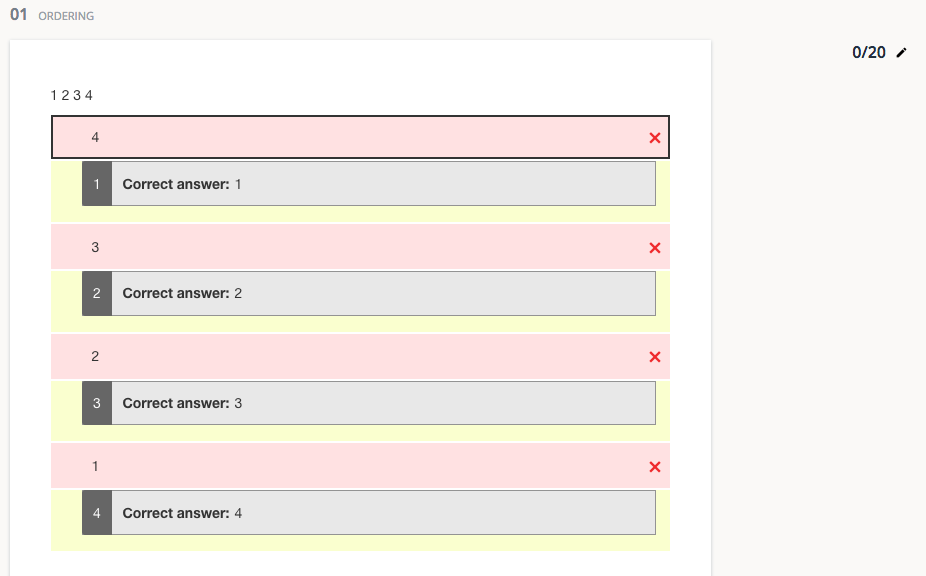
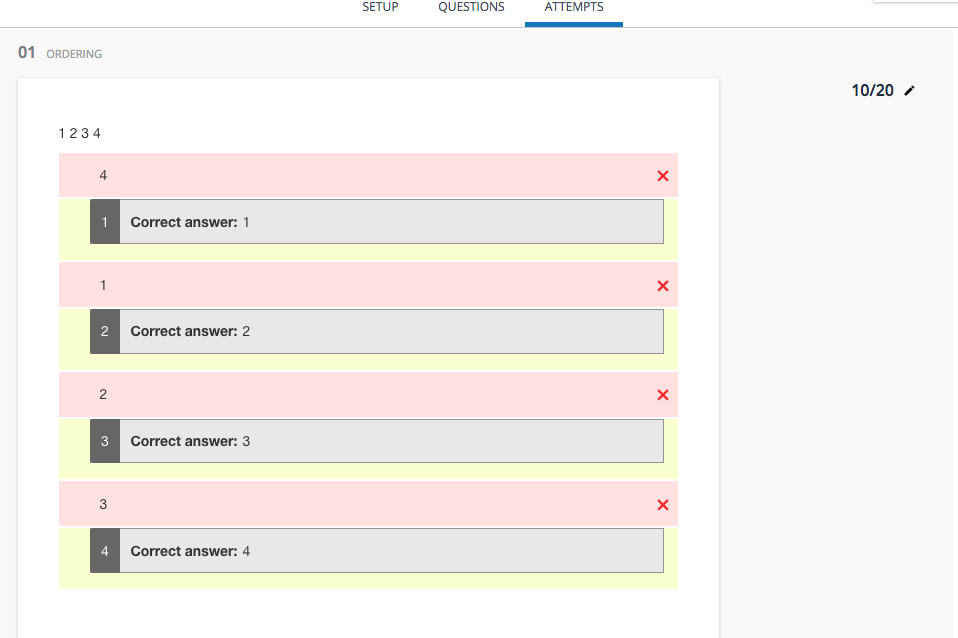
However, if some of the options are in the correct position relative to each other, even if the options are not in the correct slots, the response will be awarded partial credit.
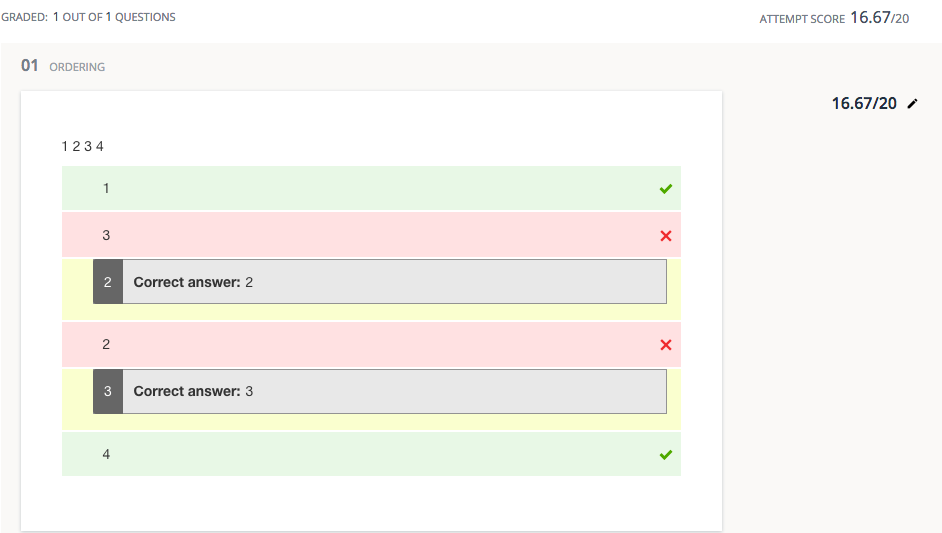
Responses with some options in their correct slots will be weighed more favorably.
Additional setup options
Select a Layout to determine how the options will appear to students.
Button
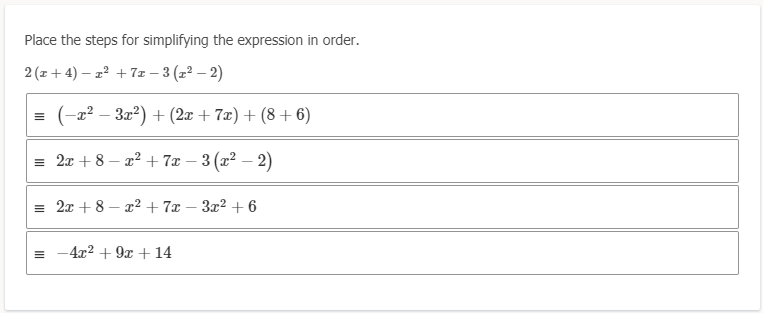
List
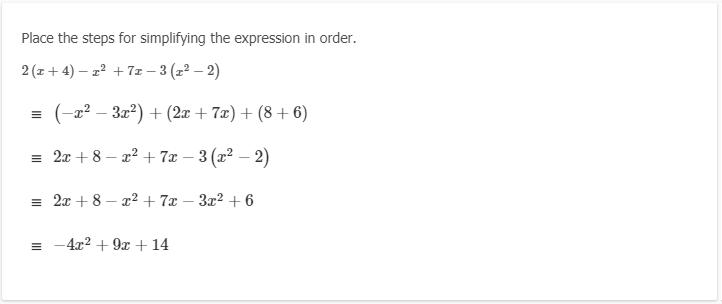
Inline

Author notes
Enter Author Notes to explain why certain choices are incorrect, or why partial credit was given for alternate answers. This field only displays to authors with edit access. This information will not display to students.
Align learning objectives
-
Click + Learning Objectives to display the Learning Objectives browser.
-
From the available learning objectives, select a category and choose from the objectives.
-
Click Align to add the objectives.
Preview and edit the question
-
Click Preview Question to review how the question will display to students.
-
Click Edit Question to return to the question editor. Alternatively, click X to close the question.