
The Success Plan page displays a list of Student Success Plans that have been defined for your student. You can view detailed information for a plan by clicking a date link in the Plan Date column.
To display the Success Plan page, click 
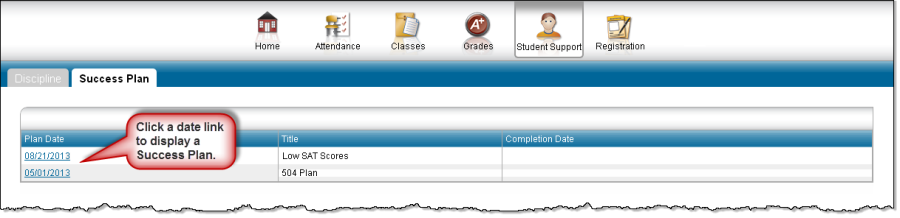
View Success Plan details
-
To view Reasons, Student Goals, and Parent Goals for a Success Plan, click its link in the Plan Date column. To return to the display of Success Plans, click List.
Add student and parent goals
-
On the Success Plan page, click the plan's link in the Plan Date column to display details on a plan.
-
In the plan's Student Goals or Parent Goals section, click New to display the Student Goal Detail or Parent Goal Detail window.
-
In the window's top section, complete the Goal and Comments fields. Leave the Completion Date field blank.
-
In the Objectives section, enter the goal's Objective by completing the necessary fields.
-
To display a set of fields for entering another objective, click New, then repeat Step 4.
-
Click Save.
Update student and parent goals
-
On the Success Plan page, click the plan's link in the Plan Date column.
-
In the plan's Student Goals or Parent Goals section, click the goal's link.
If a goal does not have a link, it was entered by a counselor or Success Plan coordinator and cannot be updated. -
On the Student Goal Detail or Parent Goal Detail window, change any fields as needed.
-
In the Objectives section:
-
To add a set of fields for entering a new objective, click New.
-
To delete an objective, check its Delete box, then click Delete.
-
-
Click Save.